Looking for free AI tools for video making? You can now generate short clips, turn scripts into video drafts, create AI presenters, edit footage, and add subtitles without building an expensive production setup. The trick is choosing the right tool for the job instead of expecting one app to do everything.
Choosing the right free AI tools for video making can help creators, marketers, and businesses produce videos faster without immediately investing in expensive software.
This guide compares 10 free AI tools for video making, explains what each one is best at, and walks through a simple workflow for creating a video on a small budget. Free plans change frequently, so treat “free” as a starting point: check current credits, export limits, watermarks, and commercial-use terms before committing to a project.
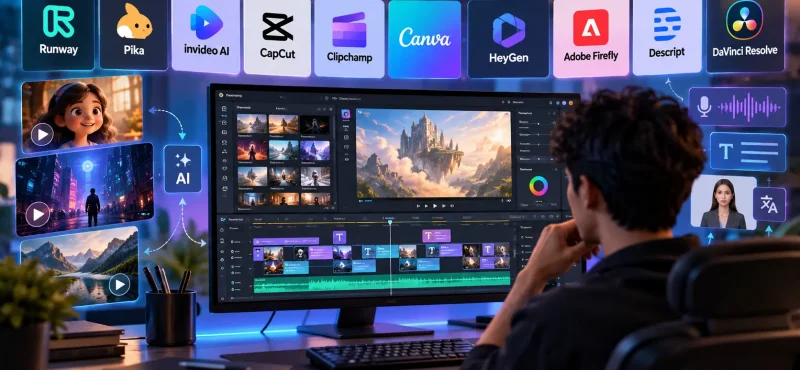
Quick picks: which AI video tool should you try?
| Your goal | Tool to try | Why it may fit |
|---|---|---|
| Generate short AI video clips | Runway | For visual experiments and generated footage |
| Make stylized clips from prompts or images | Pika | For creative short-form concepts |
| Turn a prompt into a video draft | InVideo AI | For explainers and social content drafts |
| Edit Shorts and Reels | CapCut | For captions, effects, and quick edits |
| Edit existing footage in a browser | Microsoft Clipchamp | For straightforward everyday projects |
| Create branded marketing videos | Canva | For templates, graphics, and video layouts |
| Make presenter-led videos | HeyGen | For avatar-based explainers and training content |
| Develop generated visual assets | Adobe Firefly | For creative visual exploration |
| Edit dialogue-heavy videos using text | Descript | For interviews, podcasts, and tutorials |
| Finish a video with detailed editing | DaVinci Resolve | For editing, colour, and sound workflows |
These tools do different jobs. Some generate footage; others help you edit material you already have. That distinction matters when you are planning a project.
What are AI video tools?
AI video tools use machine learning to assist with parts of video production. Depending on the platform, they may generate clips from text or images, assemble a rough video from a script, create a digital presenter, transcribe speech, remove backgrounds, or help edit a timeline.
They are most useful when they take repetitive work off your plate. For example, AI might help create a first draft of a product video, generate a few supporting shots, and prepare subtitles. A human can then check the message, replace unsuitable visuals, improve pacing, refine the sound, and make sure the finished video fits the brand.
That final review is not optional. A fast workflow is only useful if the result is clear, accurate, and worth watching.
10 free AI tools for video making
1. Runway: experiment with AI-generated footage
Runway is a creative platform for generating and manipulating visual content. It can be useful when you need an atmospheric insert, a concept shot, or a short piece of footage that would be difficult or expensive to film.
Best for: Filmmakers, creative teams, and people testing AI-generated visuals.
Try it for:
- Exploring text-to-video and image-to-video workflows supported by the platform.
- Testing visual concepts before planning a shoot.
- Creating short inserts for a larger edit.
Free AI tools for video making access and available models can change, and generation may be credit-limited.
Practical tip: Start with one clear action and a simple camera direction. Review movement, object consistency, and unwanted visual artefacts before using the clip in a finished project.
2. Pika: create imaginative short clips
Website: pika.art
Pika focuses on AI-generated video and creative transformations. It is worth exploring for stylized shots, visual experiments, and short social content.
Best for: Creative concepts and short-form videos.
Try it for:
- Generating clips from prompts or images where supported.
- Exploring different visual styles.
- Building a few options for a short scene.
Free AI tools for video making generation limits and available features depend on the current plan.
Practical tip: Keep the prompt focused on a single subject and action. If a scene requires several characters or complicated movement, create simpler shots and assemble them during editing.
3. InVideo AI: turn a prompt into a video draft

InVideo AI can help turn a prompt or script into a video draft, combining elements such as visuals, narration, subtitles, and music depending on the workflow.
Best for: Explainer videos, educational content, marketing drafts, and faceless video concepts.
Try it for:
- Building a first cut from a written outline.
- Testing the structure of an explainer.
- Producing a draft that you can revise before publishing.
The free plan may have restrictions such as usage limits or watermarks. Check the current terms before exporting.
Practical tip: Treat the first version as an assembly draft. Verify claims, replace visuals that do not match the script, and make the opening specific to your audience rather than relying on a generic hook.
4. CapCut: edit Shorts, Reels, and social videos

Website: capcut.com
CapCut is a practical option for short-form editing. Depending on the device, region, and plan, its available tools may include automatic captions, effects, background removal, templates, and audio features.
Best for: YouTube Shorts, Instagram Reels, and quick social edits.
Try it for:
- Cutting footage into a concise story.
- Adding captions and on-screen text.
- Adapting a video to a platform’s aspect ratio.
- Applying transitions and effects where they help the story.
Some features may be paid or unavailable in certain regions.
Practical tip: Check every auto-generated caption. Correct spelling, names, and technical terms, and avoid adding a transition to every cut. Clean pacing usually beats visual clutter.
5. Microsoft Clipchamp: edit footage in your browser

Website: clipchamp.com
Clipchamp is a browser-based video editor suited to straightforward projects. You can arrange footage on a timeline, add titles and transitions, and use supported voiceover, text-to-speech, or caption features.
Best for: Beginners, small businesses, presentations, and simple promotional videos.
Try it for:
- Combining existing clips.
- Adding titles, narration, and music.
- Creating a basic product demo or internal video.
Clipchamp is primarily an editor, not a dedicated text-to-video generator. Export options depend on the current plan and features.
Practical tip: Choose a consistent title style, keep the audio easy to hear, and end with one clear next step for the viewer.
6. Canva: create branded marketing videos
Website: canva.com
Canva combines design templates, graphics, and video editing. It is useful when a video needs to match a brand or be repurposed for multiple social platforms.
Best for: Branded social content, announcements, presentations, and simple marketing videos.
Try it for:
- Starting from a video template.
- Combining text, graphics, images, and footage.
- Keeping colours, fonts, and logo placement consistent.
- Using available AI-assisted design features.
Some assets and AI features require a paid plan or have usage limits.
Practical tip: Build a reusable template with your brand fonts, colours, and logo. A consistent system makes repeated content faster to produce and easier to recognise.
7. HeyGen: make AI presenter videos
Website: heygen.com
HeyGen specialises in AI avatar and presenter-style videos. It can be useful when you need a scripted presenter but cannot record someone on camera for every version.
Best for: Training videos, product explainers, and multilingual business content.
Try it for:
- Turning a script into a presenter-led draft.
- Exploring supported voice and language options.
- Creating repeatable formats for internal communication.
Free AI tools for video making access is limited, and some features or longer videos may require a paid plan.
Practical tip: Write for the ear, not the page. Use short sentences, natural pauses, and words a real person would say. Use a person’s likeness or voice only with the appropriate permission.
8. Adobe Firefly: explore generative visual assets

Website: firefly.adobe.com
Adobe Firefly offers generative tools for creative work, including image and video features where available. It can help with concept development and supporting visuals.
Best for: Visual exploration, creative development, and selected generative-media tasks.
Try it for:
- Exploring visual directions for a project.
- Developing supporting images or footage with available features.
- Testing ideas before producing final assets.
Features and free usage allowances depend on current availability and generative credits.
Practical tip: Give every shot a purpose. A visually impressive clip that does not support the message can make the overall video less effective.
9. Descript: edit dialogue-heavy videos with text

Website: descript.com
Descript transcribes spoken content and lets you edit supported video workflows through the transcript. This can make it easier to remove unwanted sections from interviews, tutorials, podcasts, and talking-head videos.
Best for: Interviews, podcasts, tutorials, and educational content.
Try it for:
- Transcribing speech.
- Editing dialogue by revising the transcript.
- Creating and refining captions.
- Using supported audio-cleanup features.
The free plan has usage and export limits that can change.
Practical tip: Remove repeated phrases and long pauses, but preserve the speaker’s natural rhythm. Review the final audio because transcript edits can sometimes create abrupt cuts.
10. DaVinci Resolve: finish videos with more control
Website: blackmagicdesign.com/products/davinciresolve
DaVinci Resolve has a substantial free version and is useful for editing footage from AI tools, cameras, or stock libraries. It is not primarily a prompt-to-video generator; its strength is giving you detailed control over the finished edit.
Best for: Timeline editing, colour correction, sound, and more involved post-production.
Try it for:
- Editing multiple shots into a coherent sequence.
- Adjusting colour and exposure.
- Improving sound and balancing dialogue with music.
- Finishing a project that needs more control than a template editor provides.
Some advanced features are reserved for the paid Studio version.
Practical tip: Learn the basics of pacing, colour correction, and sound mixing. These fundamentals can improve a video more than switching between AI tools.
How to choose the right tool
Use the right free AI tools for video making that solves your current bottleneck. If you need new footage, test a generator. If you already have footage, start with an editor. If the video depends on a presenter, look at avatar tools. If the content is mostly interviews or tutorials, transcript-based editing may save time.
| Need | A sensible starting point |
|---|---|
| Generate a new visual shot | Runway or Pika |
| Turn a script into a draft | InVideo AI |
| Edit a vertical social video | CapCut |
| Create a template-based brand video | Canva |
| Edit footage in a browser | Clipchamp |
| Produce an AI presenter video | HeyGen |
| Edit interviews or tutorials | Descript |
| Refine colour, sound, and the timeline | DaVinci Resolve |
Do not sign up for ten platforms at once. Pick one tool for generation and one for editing, finish a small project, and add more tools only when you know what is missing.
A simple workflow for making a video with free AI tools
Step 1: Decide what the video must achieve
Choose one purpose: explain a product, teach a skill, promote a service, or entertain an audience. Write down who the video is for and what you want viewers to remember or do.
Step 2: Write a short script
Use a clear opening, one main message, supporting details, and a call to action. An AI writing assistant can help draft the script, but check the facts and rewrite generic lines in your own voice.
Step 3: Plan the shots
Split the script into scenes. Decide which parts need real footage, generated clips, graphics, or on-screen text. A simple shot list helps prevent random visuals from taking over the story.
Step 4: Generate or gather footage
Use a video generator for suitable shots, or record your own footage and use licensed stock assets. Keep an eye on continuity: lighting, camera movement, character appearance, and visual style should feel intentional when the clips are edited together.
Step 5: Edit and add sound
Assemble the clips in an editor. Remove anything that does not move the story forward, keep music below dialogue, and add captions where they help viewers follow along.
Step 6: Review before publishing
Watch the complete video from beginning to end. Check for:
- Visual glitches or inconsistent details.
- Incorrect captions, names, and facts.
- Uneven audio and distracting background noise.
- Licensing and commercial-use restrictions.
- The correct aspect ratio and export settings.
- A clear message and useful ending.
AI can speed up production, but a careful review is what makes the result ready for an audience.
Can free AI tools make professional videos?
They can make useful videos, and in some cases the results can look impressive. But the quality depends on the project’s complexity, the tool, the source material, and the editing that happens afterward.
Free AI tools are well suited to concept tests, simple explainers, social content, rough cuts, and automated captions. They may be less reliable when a project needs precise character consistency, complex camera movement, detailed 3D animation, advanced compositing, or strict brand control.
For those projects, human creative direction and technical production skills matter. Someone still needs to decide which shots work, how the story flows, whether the visuals are consistent, and whether the final video communicates the right message.
The strongest approach is not AI instead of people. It is AI used by people who know how to make a good video.
Free AI tools vs professional video production
| Factor | Free AI tools | Professional production |
|---|---|---|
| Starting cost | Often low or free | Depends on the project scope |
| Speed | Fast for drafts and simple content | Depends on complexity and review needs |
| Creative control | Varies by platform | More precise direction and revision |
| Consistency | May need manual correction | Can be managed through an established workflow |
| Complex animation | Can be difficult to control reliably | Can involve specialist artists and pipelines |
| Best fit | Experiments and routine content | Bespoke, complex, or high-stakes projects |
Free tools are a sensible place to learn and test ideas. When a project needs a distinctive visual identity, complex animation, or a polished result that must meet specific requirements, a professional workflow may be a better fit.
Where Incredimate fits in
At Incredimate, we see AI as one part of a larger creative workflow. It can help teams explore ideas and accelerate selected tasks, but a finished video still needs storytelling, planning, technical execution, and quality control.
If your project needs more than a basic AI-generated clip, explore our AI video production services for businesses. For more about our studio and work, visit Incredimate.
Frequently asked questions
What is the best free AI tool for video making?
It depends on the task. Runway and Pika are options for experimenting with generated footage, InVideo AI can help create video drafts, CapCut is useful for short-form editing, and DaVinci Resolve offers more detailed editing control in its free version. Check current plans before choosing.
Can I create a video from text for free?
Some platforms offer limited text-to-video or script-to-video features at no cost. Credits, video duration, export quality, watermarks, and access to specific models vary by platform and can change over time.
Which free AI video tool is good for YouTube Shorts?
CapCut is a practical starting point for editing vertical videos and adding captions. If you need original generated footage, you can create clips in a suitable generator and then assemble them in an editor.
Can I use AI-generated videos commercially?
It depends on the platform’s terms, your plan, the generated material, and any third-party assets. Read the current licence and commercial-use conditions before using Free AI tools for video making in advertising or client work.
Will AI video tools replace video editors?
They can automate some repetitive tasks, but they do not remove the need for storytelling, creative direction, continuity checks, sound design, and quality control. Editors remain important when the final result needs to be coherent and precise.
Are free AI video tools enough for a business?
They can be enough for prototypes, simple social posts, internal training, and some promotional content. A project with strict brand requirements, complex animation, or a high-stakes launch may benefit from professional production and review.